
Appearance
Getting started
Glowtrope turns music into moving pictures. It listens to the sound, finds the beat, the song's sections and the melody, and drives layered visualizations with them — on one screen or across many.
What you need
- A current desktop browser: Chrome or Edge (recommended: they support every feature), Firefox or Safari. Phones and tablets work too, with fewer audio options.
- A graphics card that supports WebGL 2 (practically every computer from the last ten years).
- Sound: a music file, a microphone, or music playing in a browser tab.
Nothing to install, and no account. If you'd like it as an app with its own window and offline use, see Install and offline.
The welcome
Each time you open the app, a welcome box asks which music to play:
- Choose your music (see below), or Decide later to look around first.
- Limit flashing turns on photosensitivity-safe mode. It's on unless you turn it off.
- Show me around starts the guided tour once you're in (offered until you've seen it).
The first time, it also shows the terms of use: free for personal, noncommercial use; commercial use needs a paid license. Agree and start accepts them and starts your music. You're asked again only if the terms change, and you can read them any time under Settings → About.
After that it's a short Welcome back with your last choice already picked: press Enter (or Start) to go, or Esc to skip it. To open straight onto the visuals every time, turn off Show this each time the app opens, or Settings → Controls → Welcome when the app opens.
Choosing your music
Browsers don't play sound until you click, so the visuals run quietly until you choose some music. After the welcome, you can choose any time from the Choose your music box in the bottom-left corner (while nothing is playing) or the Audio tab:
| Choice | What it does |
|---|---|
| Demo groove | A built-in house track. Needs no permissions — the quickest way to see everything working. |
| Microphone | Visualize music playing in the room. Your browser asks for permission first. |
| Files… | Pick one or more files (MP3, WAV, OGG, FLAC, M4A, AAC, Opus). They play as a playlist. You can also drop files, or a whole folder, anywhere on the page. |
| Tab audio | Visualize Spotify, YouTube, SoundCloud or anything else playing in another browser tab (Chrome and Edge). |
The box goes away once music is playing. You can switch sources at any time from the Audio tab. See Audio sources.
The guided tour
If you leave Show me around on in the welcome, a short tour points out every feature in place, with pictures of the ones you can't see yet. You can end it at any time. Use → and ← to move through it and Esc to leave.
To see it again later, press ? (or the ? button at the top of the control panel) and choose Take the tour.
Your first five minutes
- Start the demo groove. Visuals start moving straight away.
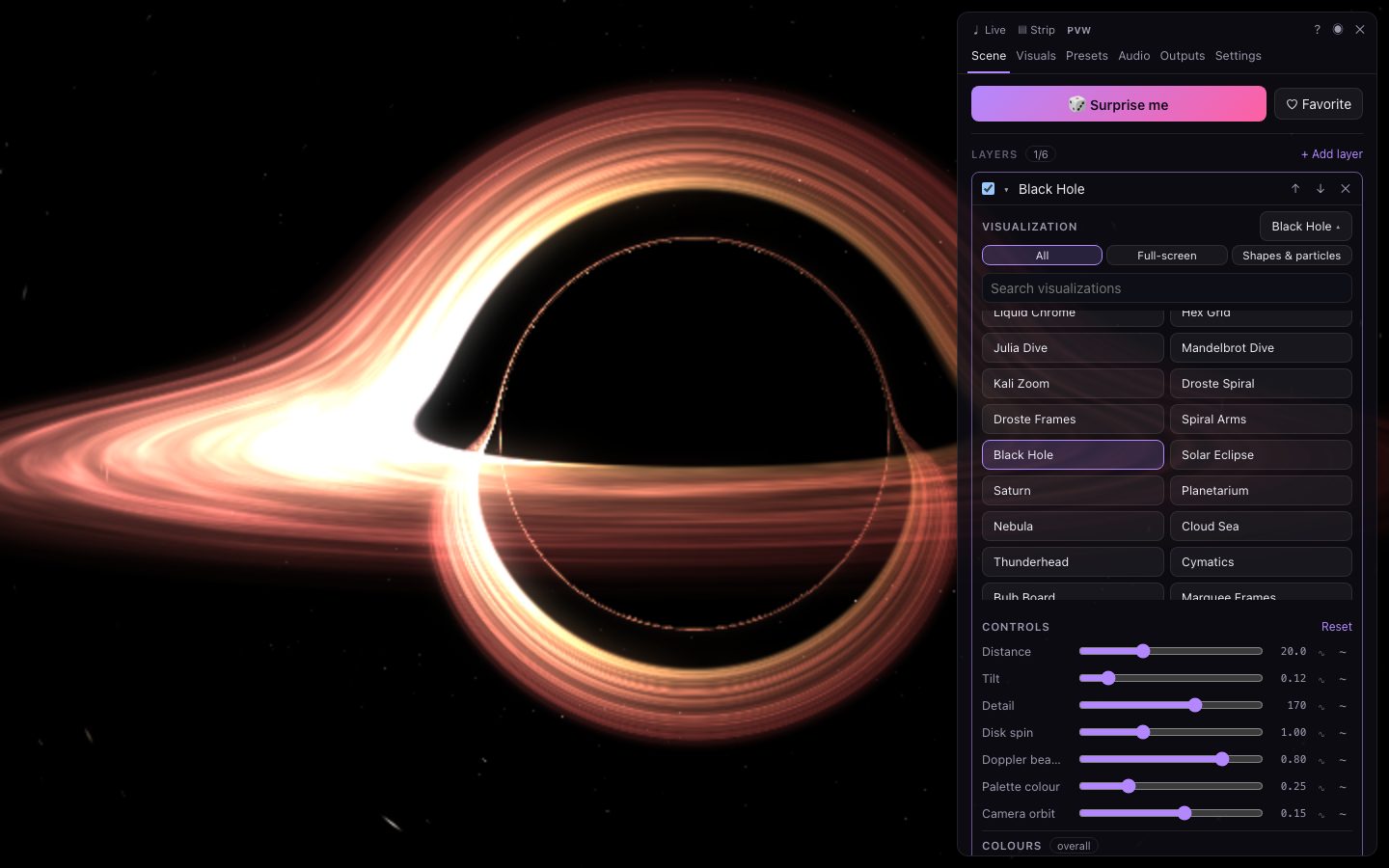
- Press Surprise me at the top of the Scene tab (or ⇧ R) a few times. Each press builds a random new look. Don't like one? ⌘ Z / Ctrl Z takes it back.
- Pick a visualization yourself. In the Scene tab, the layer at the top is open: click any visualization in its list. Drag its sliders.
- Make something move. Next to any slider, press — the value now swings back and forth with the beat. Or press and choose the bass.
- Save it. Press Favorite (or F; ⇧ F takes it out again). Your favorites live in the Presets tab, and in the strip along the bottom (J).
- Go fullscreen. Press Alt Enter (⌥ ↩ on a Mac) or at the top of the panel. Press H to hide or show the controls.
From here:
- Build richer looks with layers, colours and effects and modulation.
- Get the beat spot on with Beat, tempo and sync.
- Put on a show with preview, takes and the T-bar and extra screens.