
Appearance
Screens, projectors and recording
Output windows
An output window is a separate browser window that shows only the visuals — put one on each projector or screen, and keep the controls on your laptop.
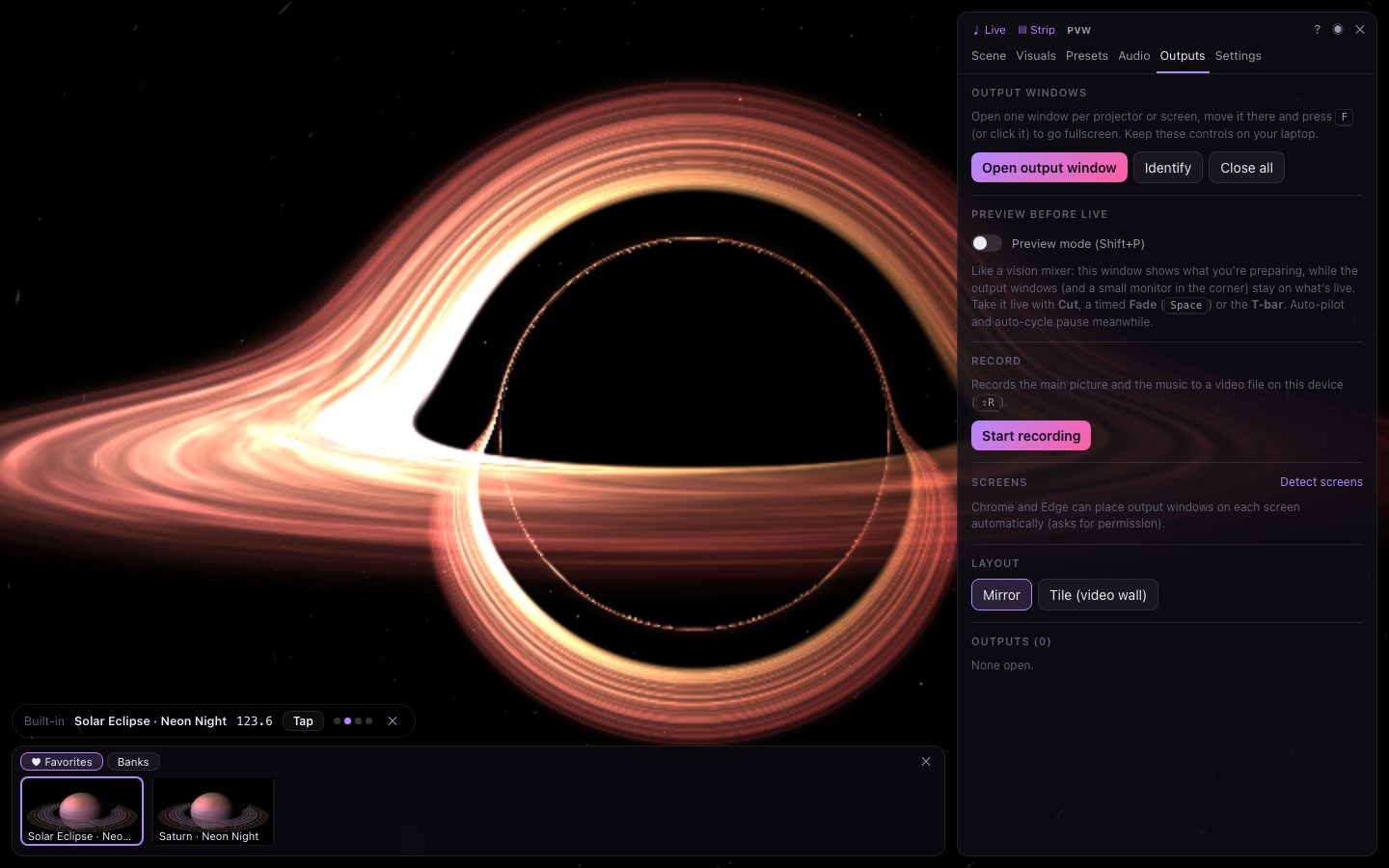
- In the Outputs tab, press Open output window (or O).
- Drag the new window to the projector or screen.
- Press Alt Enter in it, double-click it, or click its hint to go fullscreen.
Keys pressed in an output window control the app too, so your shortcuts work whichever window has focus. If you minimise or hide the control window, the outputs keep running.
Placing windows automatically
In Chrome and Edge, press Detect screens (the browser asks for permission). Each connected screen is listed with its resolution, and Open here opens an output window straight onto it.
Mirror or tile
Under Layout:
- Mirror — every output shows the whole picture.
- Tile (video wall) — one big picture is split across the outputs.
- With detected screens, the tiles follow the screens' real positions.
- Otherwise, set the Grid (rows × columns, up to 4 × 6) and the outputs fill it in order.
- Bezel gap hides the slice of picture that would fall behind the screens' frames, so lines carry on straight across the gaps.
Each output
Every open output is listed under Outputs, with its size, and:
- Rotation — 0°, 90°, 180° or 270°, for screens mounted on their side or upside down.
- Brightness — dim one screen to match the others.
- Test pattern — show a pattern for focusing and aligning projectors.
- Close it with . Close all closes every output.
Identify (or I) shows each output's number on its screen for a moment.
Preview before live
The Outputs tab also has the switch for preview mode: the main window shows what you're preparing while the outputs stay on what's live.
Recording
Press Start recording in the Outputs tab (or Alt R) to record the visuals with the music. A REC chip shows while it records. Stop and save finishes the file and downloads it (named like glowtrope-2026-10-06-2130.webm).
- It records exactly what's live — in preview mode, never the preview — at up to 1080p.
- The sound is in sync with the picture.
- The file is WebM, or MP4 in Safari. Everything stays on your device.
- Saving a long recording can take a moment; the button shows Saving….